
From a model link to a price quote in two minutes
A message arrives: "Hey, could you print this for me? How much would it be?" And a Printables link. That used to mean downloading the files, opening the slicer, slicing every part, adding up grams and hours and working out a price somewhere on the side. Half an hour of work before you had even replied.
Yet the model's author has usually done that work already. A model on Printables or MakerWorld tends to come with uploaded print files, and those carry grams, time and the printer they were sliced for.
Since last week the calculator can read them. Paste the link, tick the profiles, assign spools, send a quote.
1. Paste the link
In the cost calculator, under the slicer import button, there is a field "Or paste a Printables / MakerWorld link". Paste the model's address and click "Load profiles".
From Printables it loads the uploaded G-codes and BGcodes: grams, print time, material and the printer they were sliced for. From MakerWorld it loads the print profiles, including plates and filament colours.
It only works for models with uploaded print files. A model where the author uploaded STLs alone has nothing to read - the calculator says so. Slice it yourself and drop the 3MF or G-code into the same spot; the result is the same.
The loading goes through SpoolShare, not your browser, so you need to be signed in. None of it is stored.
2. Tick what you will print
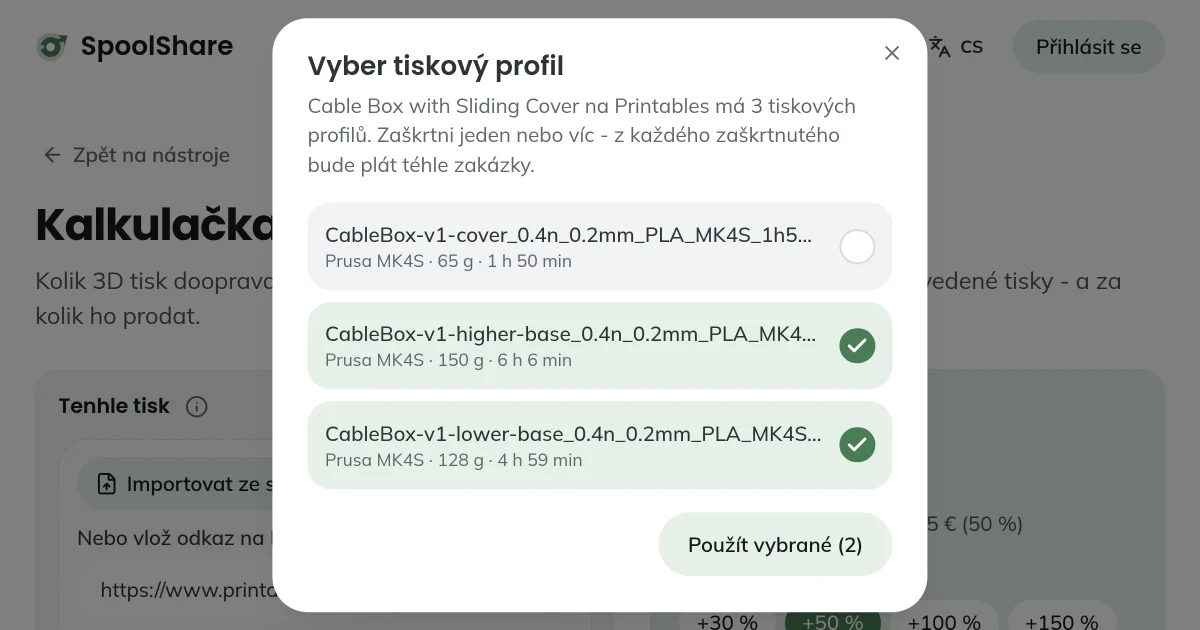
When a model has several profiles, a picker opens. Each row says which printer it is for, how much it weighs and how long it prints.
One trick is worth knowing here. Authors on Printables often upload one G-code per part: lid, base, drawer. Tick every part the object is made of and click "Use selected". Each ticked profile becomes one plate of this job.
A link copied straight from a profile tab on MakerWorld (it ends in #profileId-…) is applied right away, no picker.
Pieces versus plates. A box that takes three plates is still one object. Leave "Finished pieces from this job" at 1 when the customer wants one box. Ten figurines on a single plate: put 10.
3. Assign spools with a price
The calculator can work with a single default price per gram. It is more accurate to say what exactly you are printing from.
First give your catalogue spools a price: the spool form has "Spool price" and "Filament on the spool". Once is enough, the price stays with the spool. Only you see it; friends on your page do not.
On each plate, under "Spools used on this plate", pick a spool and type the grams. One plate can draw from several spools - the lid in black, the body in white. Grams without a spool are priced by the default spool from the Filament section.
MakerWorld also provides filament colours. If your catalogue holds a spool of a similar colour, the calculator assigns it to the plate for you and says so in the confirmation.
Running out of filament? When a chosen spool is marked as running low, or is at half and this print takes a big bite out of it, the calculator warns you before you promise the customer a date.
4. The price is right there
On the right (on a phone, in the strip under the header) sits the selling price per piece. Below it the breakdown: filament, electricity, printer payoff, your time, a buffer for failed prints.
Hands-on time is counted per plate too: swapping the plate, removing the print, cutting off supports. Three plates cost three times as much, which is exactly what people fail to add up in their head.
Switch the margin with the 30, 50, 100 and 150 % buttons, or click straight into the price and type your own - the calculator works out which margin it means. Which one to pick is what the pricing article is about.
5. Send the quote
The "Create quote" button makes a page for the customer: what it is, the price, the number of pieces, material and print time. Your margin and costs are not on it. You can add a name and a note - a deadline, say, and how they collect the print.
The quote lives in the link alone. Nothing is stored, the customer does not sign in anywhere, and they can print the page or save it as a PDF. Copy the link and paste it into the same chat the question came from.
The whole thing takes less time than downloading the model would.
Open the calculator and paste your first link - the profiles load, you just tick them and pick your spools.