
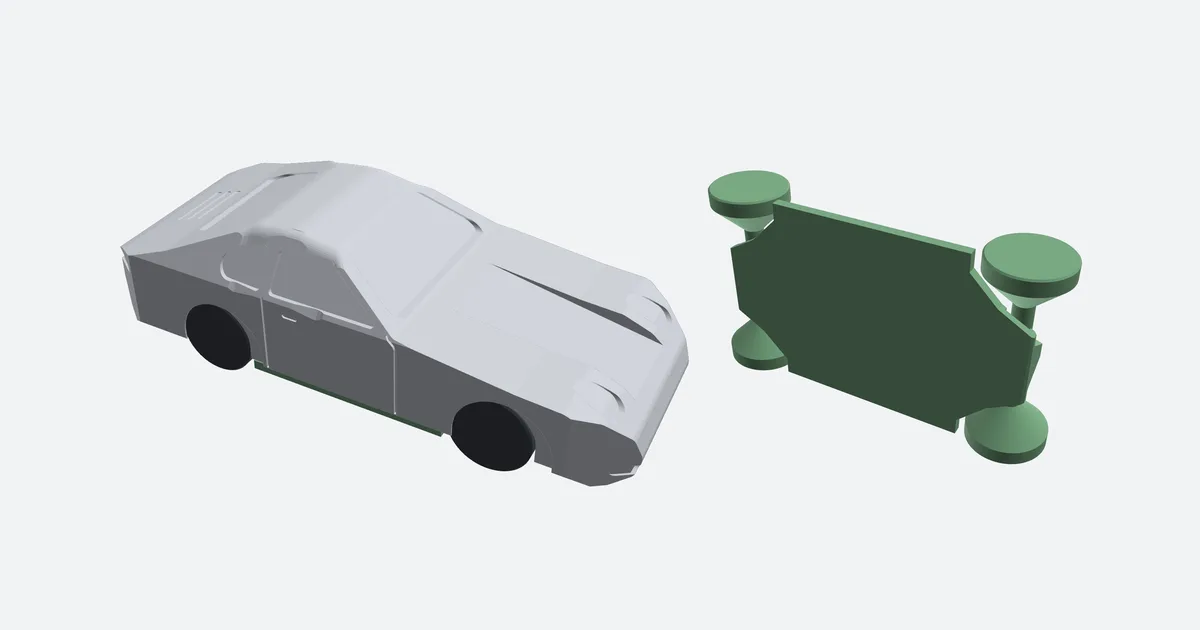
A chassis for a car model - the wheels turn straight off the printer
You print a car model - from Printables, or one an AI generated in a few seconds. It looks good on the shelf, but it is one lump of plastic: the wheels are part of the body and nothing turns.
Making it a toy that rolls means opening CAD. Cut the wheel wells, design the axles, bearings and clearances, and work out how to print it all without supports so the wheels actually turn afterwards. An evening per model, and with an AI model full of holes even that is often not enough.
The chassis tool does it for you: load the model, set the wheels, and download the body with a pocket and a chassis that clips into it.
1. Load the model
The chassis tool takes GLB, OBJ, STL and 3MF. An AI model with holes in it is fine: the tool first rebuilds it into a closed solid, which takes about 15 seconds for a big one.
A model split into parts shows a list of them with checkboxes. The wheels are often a part of their own - untick them, the chassis brings its own. Wheels left on the model are cut away with the wheel wells anyway.
When the model lies on its side or faces backwards, set it right with Stand up, 90° and Front. The Length slider sets how long the car will be, and Body height raises or lowers it.
Compressed GLB will not load. Export a Draco or Meshopt file again without compression, or as OBJ or STL. Everything else is computed in your browser and the model is never uploaded.
2. Set the wheels
The tool guesses the wheels from the model's underside. Wheels still on the model show as two spots where it touches the ground, and removed ones by their wheel arches. Guess again repeats the guess any time.
Then fine-tune it in the side view: drag a wheel to move its axle, anywhere else to raise or lower the body. The exact numbers sit in the Wheels panel - wheelbase, axle shift, wheel diameter, track across the wheels' outer faces and tread width.
3. What you get
The body gets a pocket cut into its underside and wells round the wheels. The pocket is the chassis's imprint with a gap all round, swept down, so the chassis simply slides in from below.
The chassis is a plate, a block on each axle and a pair of clips between the axles that catch in the body. Each axle is one piece with both its wheels and prints right inside its block. There is nothing to fit afterwards, and the plate stops just short of the axle, so nothing rubs on the wheels - they turn straight away. The underside carries what a toy car shows turned over: an engine, a drive shaft, an exhaust and a tank, or a name in a frame.
The front axle rocks
The front axle hangs from the block in the middle and rocks about it, the way a Hot Wheels monster truck does. Over uneven ground all four wheels stay down, and the rear axle holds the car upright. How far a wheel rises and falls is the Rocking travel slider.
How long the block the axle rocks in is the Joint size slider: a shorter joint leaves more of the axle free, and it rocks more loosely. The wheels only get room up and down, where they really move, so the axle does not slide from side to side.

Why not both. With both axles rocking nothing holds the body upright, and on a table it settles on its side by the whole travel. If you do not mind, switch on Rock the rear axle too.
For an off-roader there is Wheel droop: the axle gets room under it in its block too, so when you lift the car off the ground, the wheels drop by as much. On the ground the car settles on its axles and stands as high as before - only the bottom of the block comes that much nearer the ground.
Hubcaps
The wheels need not be plain. Pick a hubcap from eight presets in the Wheels panel - five spokes, a turbine, a steel wheel and more - and see it straight away in the side view and in 3D.
Edit the hubcap opens the editor. Draw a shape at the top, which repeats round the wheel, and set how many copies and how deep the cut. A second shape sits in the middle, and a groove round it parts the hubcap from the tyre.

Everything is cut into the wheel with walls at 45 degrees. The lower wheel prints face down on the bed, so each cut narrows a little with every layer until it closes over - no supports.
Underside and lettering
You pick the underside the way you pick a hubcap. The Chassis panel has six presets - classic with the engine at the front and the drive shaft running right back to a differential on the rear axle, a sports car, an off-roader with a ladder frame, electric with battery modules, a base with a label like a die-cast car's, and plain. Each one is laid out for your car, so it sits between the wheels even on a small model.
Edit the underside opens the editor. Drag the shapes, click an edge to add a point, round any corner and mirror a shape to the other side. You see the underside as you will on the finished car: from below, front to the right.
The editor also switches on lettering like a Matchbox base carries: up to four lines, Poppins or Atkinson, a rectangle, a pill or no frame, turned by 90°. The shapes make room round it, and any crumbs of them that would be left over go.
It all stands 0.3 to 1.2 mm proud. The shapes have 45 degree walls all round, and the letters lean back only on the side that faces the bed as it prints, so they stay crisp and need no supports.
4. It prints without supports
The chassis prints on its side, as it downloads, with the axles upright. Everything on it that faces down towards the bed rises at least 30° from the horizontal and no layer starts in mid-air, so it needs no supports. If your slicer adds them by itself, turn them off.
Each wheel has a 45 degree cone behind its tread right in to the axle, so even the upper wheel hanging on its axle has no face over air. The Chassis to print view shows it the way it will lie on the bed.
The body prints standing on its flat underside. That is what Cut the body flat underneath is for: it cuts away everything that hangs lower than the underside of the plate, sills or bumpers, say, and the body stands on a flat face.

The body can also be cut into two halves along its middle (Body in two halves). Each prints lying on its cut, and two holes take pieces of 1.75 mm filament, 10 mm long, that line the halves up for gluing.
The plate is as wide as the track. Printed on its side, the chassis stands on the edge of the plate, so it cannot be narrower. On a body tucked in at the sills, narrower than the track, the plate shows below them like a sill - the tool tells you.
5. The clearances that matter
Every printer prints a little differently, so all three clearances can be set:
- Axle play (0.35 mm by default) is the gap round the axle in its pivot block, per side. If the wheels do not turn after printing, raise it.
- Fit in the body (0.25 mm by default) is the gap round the plate and the clips in the pocket. Too tight and it will not go in, too loose and it rattles. The clips catch the chassis right at its height, so it does not drop.
- Fit round the joints (0.25 mm by default) is the gap round the blocks at the axles. Their sloping sides print as overhangs and can come out a touch bigger: if the chassis rubs at the wheels, add here and keep the middle tighter.

Once you find the clearances your printer likes, keep them under My settings - with the wheels, hubcaps and underside too. Save the list to a file to open it in another browser.
The axle is 5 mm by default and goes from 4 to 8. Do not go thinner: on a small car the axle is the part that breaks first. Ground clearance (4 mm by default) is the height of the plate's underside above the ground.
6. When something does not fit
The tool checks that the chassis can be built and tells you what is off:
- the pivot blocks would drag on the ground - a thinner axle, less wheel droop or bigger wheels,
- the track is too narrow for the wheels - the pivot block would not fit between them,
- the wheelbase is too short for the wheels - the clips do not fit between the axles,
- the axle is too thick for the wheels.
7. Download and put it together
Body STL and Chassis STL download each part on its own. Both as 3MF puts the two in one project, a body in two halves as two objects of their own.
After printing, push the chassis into its pocket from below until the clips click. Glue is only for the body's halves, when you print it split.
No model? Draw one in the car designer and hand it straight over with Add the chassis, with the wheels it was drawn round. The car designer article shows how.
Open the chassis tool and load your model - set the wheels in a minute and download two parts that clip together.